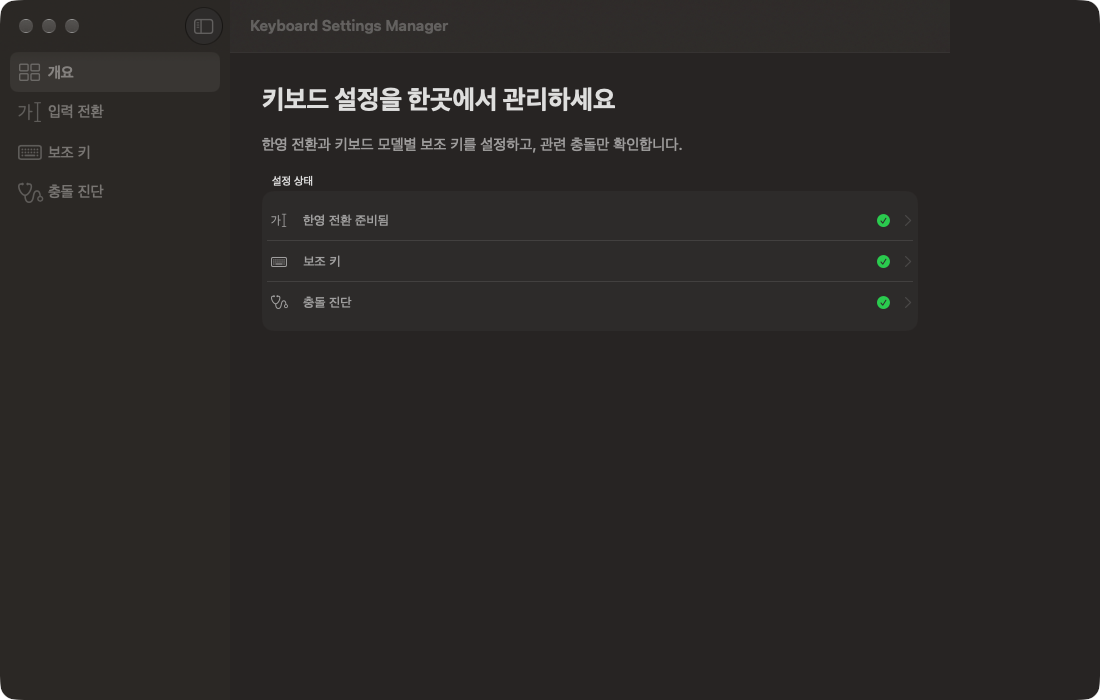
One-key Korean/English toggle and its setup statusSetup status in one placeModifier keys per keyboard modelChecks conflicts on managed keys only
RequiresmacOS15.0 or later
PlatformmacOS
LanguageKO · EN
Size11.5 MB
Keyboard Settings Manager handles your Korean/English toggle key and modifier keys in one window. Pick Caps Lock, right Command, or right Option, and that one key switches between Korean and English. You can also change what Caps Lock, Control, Option, and Command do for each keyboard model.
One key for Korean and English
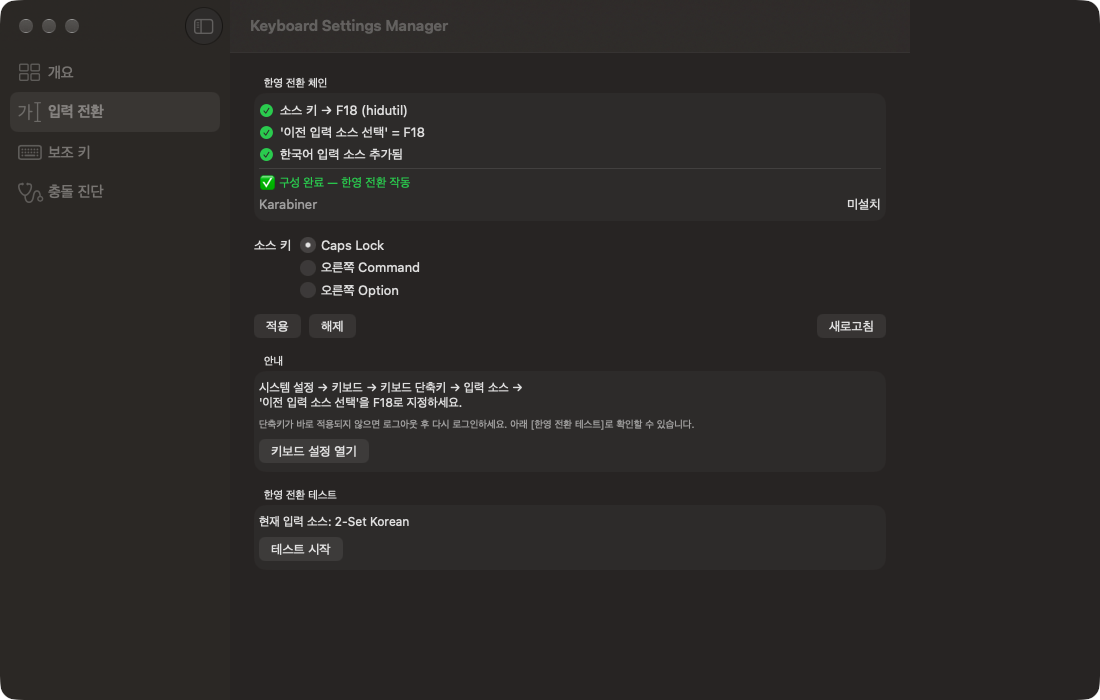
The app maps the key you pick to F18 and sets the macOS shortcut Select the previous input source to F18. The Input Switching screen checks three things in order: the key is mapped to F18, the shortcut is F18, and a Korean input source is added. When all three are in place it shows Configured. The mapping is reapplied every time you log in, so it survives restarts.
How to use it
Choose the toggle key: In Input Switching in the sidebar, pick a source key and click Apply. If the shortcut does not take effect right away, log out and back in.
Test it: Under Toggle test, click Start test and press the key you picked. When the input source changes, the app shows the new one.
Undo: Click Remove on the Input Switching screen to clear the key mapping and its login item.
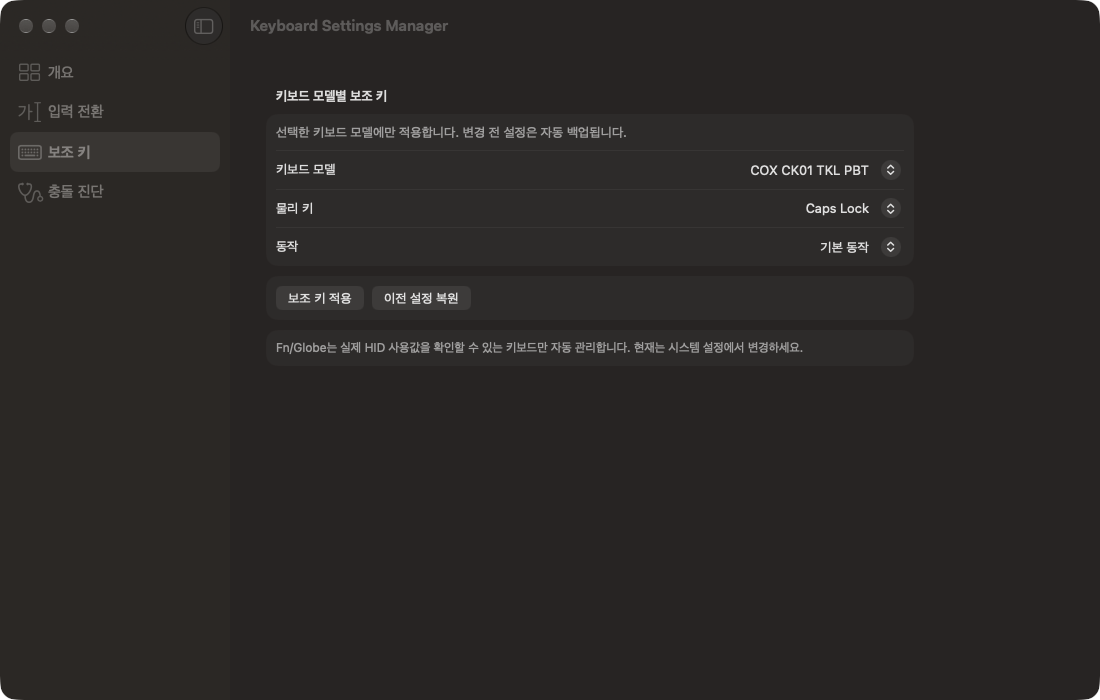
Remap modifier keys: In Modifier Keys, pick a keyboard model, a physical key, and a new action (default, Caps Lock, Control, Option, Command, or none), then click Apply modifier key. The change applies only to that keyboard model.
Restore previous settings: The mapping before each change is backed up automatically. Restore previous settings returns that keyboard model to its latest backup.
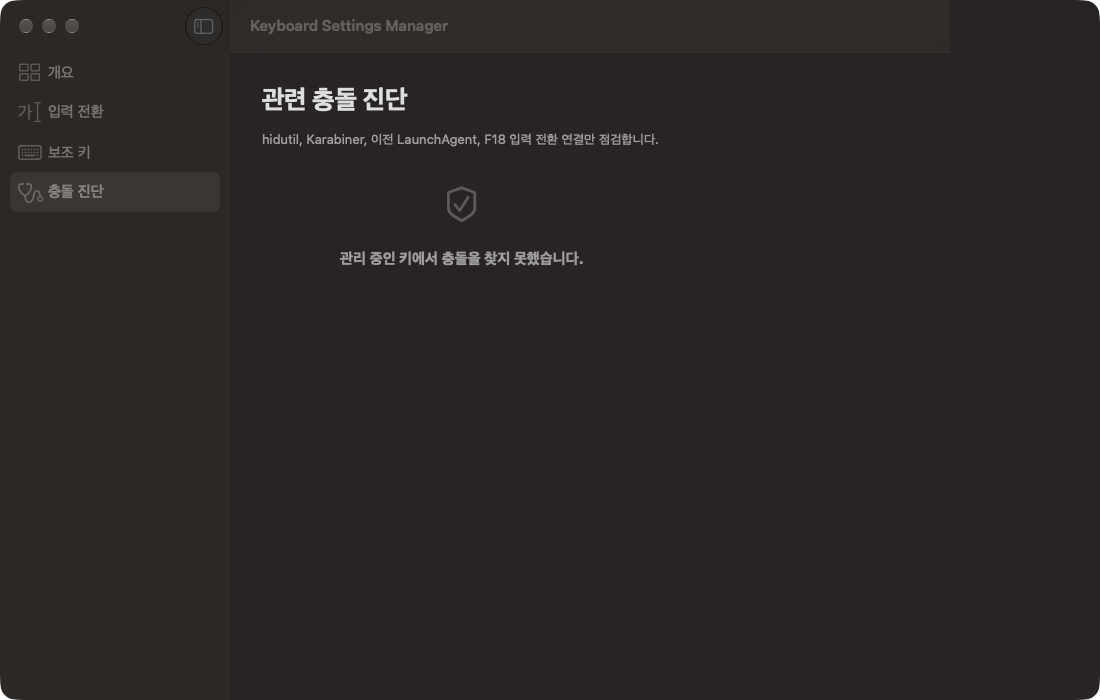
Conflict diagnostics: Diagnostics shows only problems with the keys this app manages: hidutil mappings, Karabiner-Elements settings, login items left by older Korean-key apps, and the F18 toggle chain.
Moving from an older Korean-key setup
If an older Korean-key app left a login item behind, the Input Switching screen tells you. Applying the new setup safely replaces the older items this app owned.
Requirements
Runs on Apple Silicon Macs with macOS 15 or later. It is free: sign in with your Gujo account and install it from your Gujo Cloud Apps library. The app is available in English and Korean.

 Clipboard History
 RightClick