RightClick adds your own actions to the Finder right-click menu. Register a shell command once, and it shows up when you right-click a file or folder in Finder. It receives the paths of the items you picked and runs on this Mac.
Actions included from the start
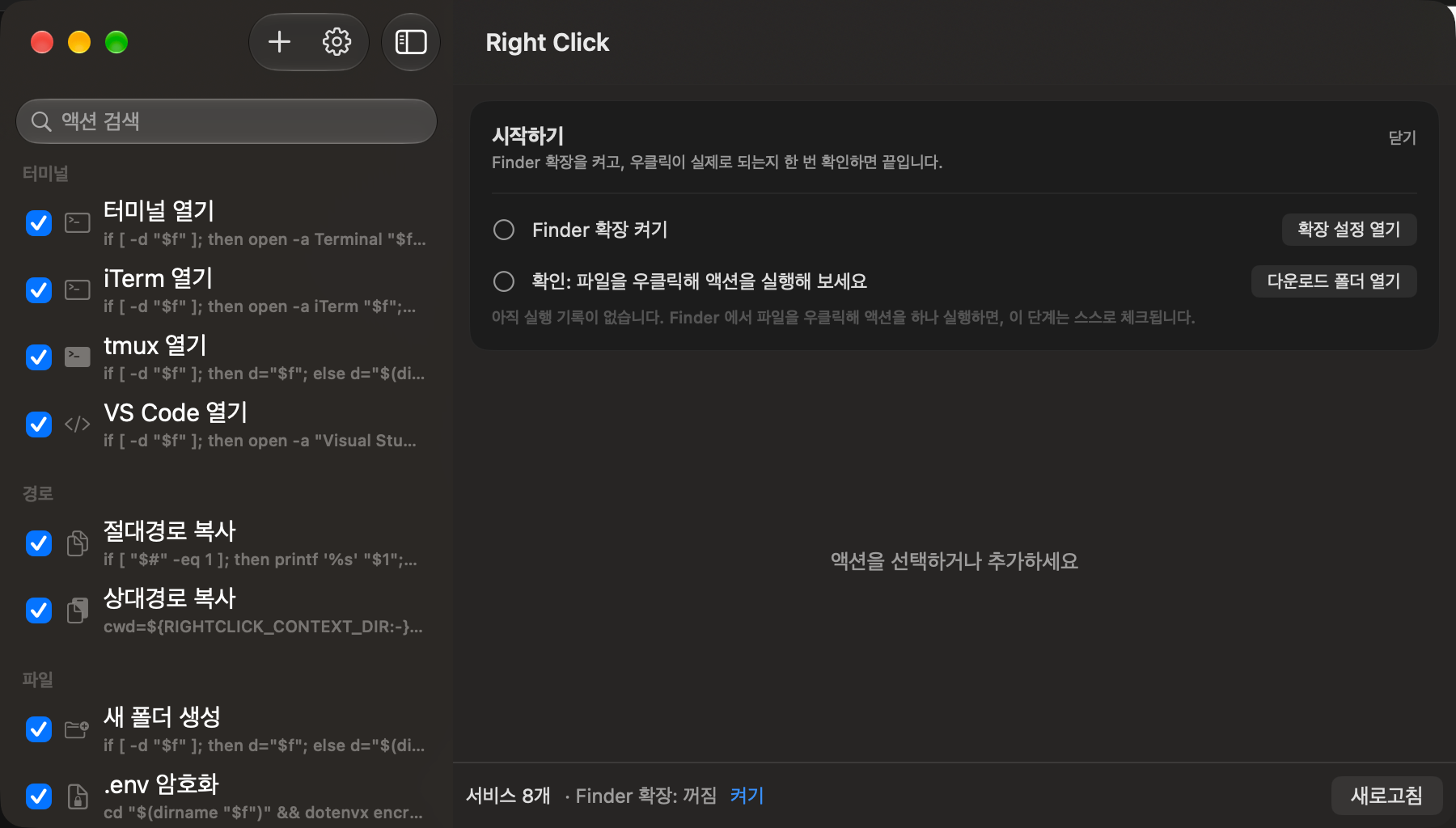
The first time you open the app, it adds eight common actions: Open Terminal, Open iTerm, Open tmux, Open VS Code, Copy absolute path, Copy relative path, Create a new folder, and Encrypt .env. They are added only once, and an action you delete does not come back.
Copy paths: Copies the paths of the selected files and folders to the clipboard, one per line when you pick several. Relative paths are based on the Finder folder you are looking at.
Create a new folder: Creates a new folder in the selected folder or in the empty space of a folder, adding a number if the name is taken.
Open in a terminal or editor: Opens the selected folder, or the folder you are viewing, in Terminal, iTerm, tmux, or VS Code. The iTerm, tmux, and VS Code actions need that app installed. Encrypt .env needs the dotenvx command.
Make your own actions
Command: Click + in the list on the left, then enter a name and a shell command. $f in the command becomes the path of each selected item.
Input and shell: Pick the input type (files, folders, text, url, selection, none) and the shell (bash, zsh, sh). selection passes all selected paths at once.
Where it shows: For each action, choose whether it appears when you right-click a file, a folder, or the empty space in a folder. Add file name patterns such as .env or *.md to show it only on matching files.
Groups: Give actions a group name and they are grouped into submenus under the RightClick item in the Finder menu. The included actions use the groups 터미널 (Terminal), 경로 (Path), and 파일 (File).
Icons: Type an SF Symbol name or pick an image file to give a menu item an icon.
Test run: Use Test Run… to pick a file and run the command right away, then check the exit code and output in the status bar at the bottom of the app.
Search, delete, and undo: Find actions by name or command. Right after deleting an action, you can undo it once.
Export and import: From the File menu, export your actions to a JSON file and import them on another Mac, either merged with your actions or replacing them.
Two ways to appear in Finder
With the Finder extension turned on, actions appear directly in the right-click menu. If Expose as Quick Action / Service is on for an action, it also appears under Quick Actions or Services in the right-click menu. The status bar at the bottom of the app shows whether the Finder extension is on.
Commands run on this Mac
Your commands and action list are stored on this Mac, and commands run in a shell on this Mac. RightClick only cleans up the Quick Actions it created and never deletes Quick Actions made by other apps.
Requirements
Runs on Apple Silicon Macs with macOS 14 or later. It is free: sign in with your Gujo account and install it from your Gujo Cloud Apps library. The app is available in English and Korean.

 Clipboard History
 Keyboard Settings Manager